For freelancers working with international clients

Speak Ukrainian — Voicemodly translates your voice into English

For calls, interviews, and project discussions with clients. Live voice translation and subtitles without having to formulate everything quickly in English.

5 minutes free · no card required

Ukrainian speech → English voice and subtitles
Use cases

When language gets in the way of work, translation should help during the conversation.

Real freelancer situations: client calls, interviews, reviewing revisions, and keeping agreements.

How it works

Four simple steps instead of manual translation and note-taking.

A clear flow: choose the audio source, select a language, start translation, and have the conversation.

01

Choose audio

Use your microphone for your own voice or tab audio for web meetings in the browser.

02

Choose a language

Choose the language you want to hear or speak the translation in.

03

Start translation

The “Start” button begins the session and shows connection and audio status.

04

Listen and read

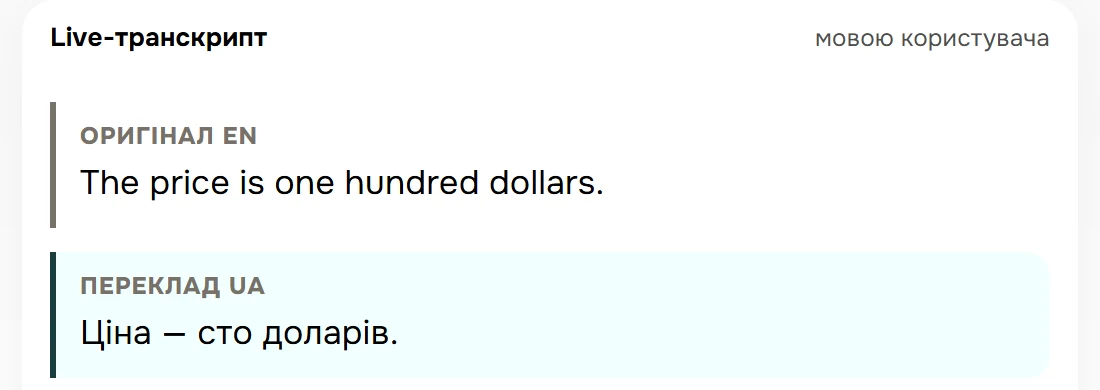
Listen to spoken translation, check subtitles, and save the conversation as text.

Voicemodly screen: one complete pair, the English original about a price of one hundred dollars beside its Ukrainian translation during a conversation
Saved conversation shown as text: one complete pair, the English original before its Ukrainian translation
Features and modes

Ways to connect and features for client calls.

Choose the browser, Chrome extension, or Voicemodly Desktop. Each option includes translation, subtitles, and saving the conversation as text.

Browser

The quick demo and web mode work in your browser without installing Voicemodly Desktop.

Chrome extension

For a two-way Google Meet or other web meeting, the extension may be needed to work with tab audio.

Voicemodly Desktop

For Zoom Desktop and other desktop apps when system audio is needed.

Download Desktop

Spoken translation

The translated voice plays during the conversation with a clear connection status.

Real-time subtitles

Original speech and translation are separated so it is easier to check the meaning.

Save the conversation as text

After the call, save the session text so you can return to revisions and agreements.

PRICING

Credit packages

Choose a credit package and use your balance whenever you need real-time translation.

Pay only for what you use.

No subscriptions. No recurring charges.

Credits never renew automatically.

10 Credits

50 min of two-way conversation

$12

One-time purchase

  • Up to 100 min one-way
  • Up to 40 min two-way + transcript
Buy 10 Credits

50 Credits

250 min of two-way conversation

$55

One-time purchase

  • Up to 500 min one-way
  • Up to 200 min two-way + transcript
Buy 50 Credits

Credit usage

FeatureCredits per minute
One-way translation0.10
Two-way translation0.20
Transcript+0.05

Two-way translation with transcript uses 0.25 credit per minute.

FAQ

Questions before your first translation.

A quick guide to the browser, Chrome extension, Voicemodly Desktop, languages, credits, and saving text.

Does Voicemodly work directly in the browser?
Yes. The browser is for the quick demo and web mode without Voicemodly Desktop. A two-way Google Meet conversation may require the Chrome extension, while Zoom Desktop and other desktop scenarios with system audio use Voicemodly Desktop.
Which audio sources can be translated?
Use the microphone for your own voice and tab audio for web meetings in the browser. For Zoom Desktop and other apps with system audio, use Voicemodly Desktop.
How many languages support spoken translation?
The current web interface supports voice translation in 13 languages: English, Spanish, Portuguese, French, Japanese, Russian, Chinese, German, Korean, Hindi, Indonesian, Vietnamese, and Italian.
How do features and credits work?
All features are available right away. Payment is through one-time credit packages, with no subscription or automatic charges.
Can I save the conversation as text?
Yes. After the session, you can save the conversation text locally and use it for notes or a client summary.
Does Voicemodly store audio or transcripts?
Under the privacy policy, audio, voice data, and text transcripts are not stored, viewed, or logged on servers.
Support

Support Service

If you have any questions regarding your account, payment, refunds, or technical aspects of Voicemodly, please contact our support team.

Try it now

Spend your first 5 minutes without a language barrier.

Start the free demo, test your microphone or tab audio, and save your first conversation as text.